Calculate printing costs and create clear quotes
Recognize the job, apply repeatable pricing rules and present every charge in a customer-ready quotation.

A dependable print estimate begins with measurable job details, not a guessed total. The same input should produce the same price when the commercial rules have not changed.
For mixed customer files, the slowest part is often opening every document to count pages and identify sizes. A batch recognition workflow can move those details into one pricing view.
Collect the details that affect cost
File and page information
Record the filename, format, page count, detected paper size and whether the document contains unusual dimensions.
Production choices
Confirm paper, color or black-and-white output, single- or double-sided printing and copy quantity.
Finishing and commercial terms
Add binding, minimum charges, discounts, tax, rounding and any other rule used by the business.
Clarify ambiguous files before pricing. A document designed at an unusual size may need scaling, trimming or a different production method.
Create reusable pricing rules
A pricing profile should describe one market, production environment or customer agreement. Separate paper sizes, color modes and finishing charges so the reason for each subtotal remains visible.
- Define unit prices.Set the price for each paper size and print mode.
- Add minimum charges.Protect setup time on jobs with very small quantities.
- Price finishing.Include staple, coil, perfect binding or other services.
- Set tax and rounding.Use the currency and commercial rules required by the market.
Test the profile with a small known job. Compare the calculated total with a manual calculation before using it for customer work.
Turn the calculation into a useful quotation
The quotation should help the customer understand what is included and help production staff reproduce the job later. Use clear line items instead of hiding every choice inside one total.
Customer and seller
Include names, contact details and the seller logo where appropriate.
Job line items
Show files or descriptions, quantities, production choices and subtotals.
Summary
Present discounts, tax, rounding and the final payable total clearly.
Portable output
Export PDF for delivery and Excel when detailed review is needed.
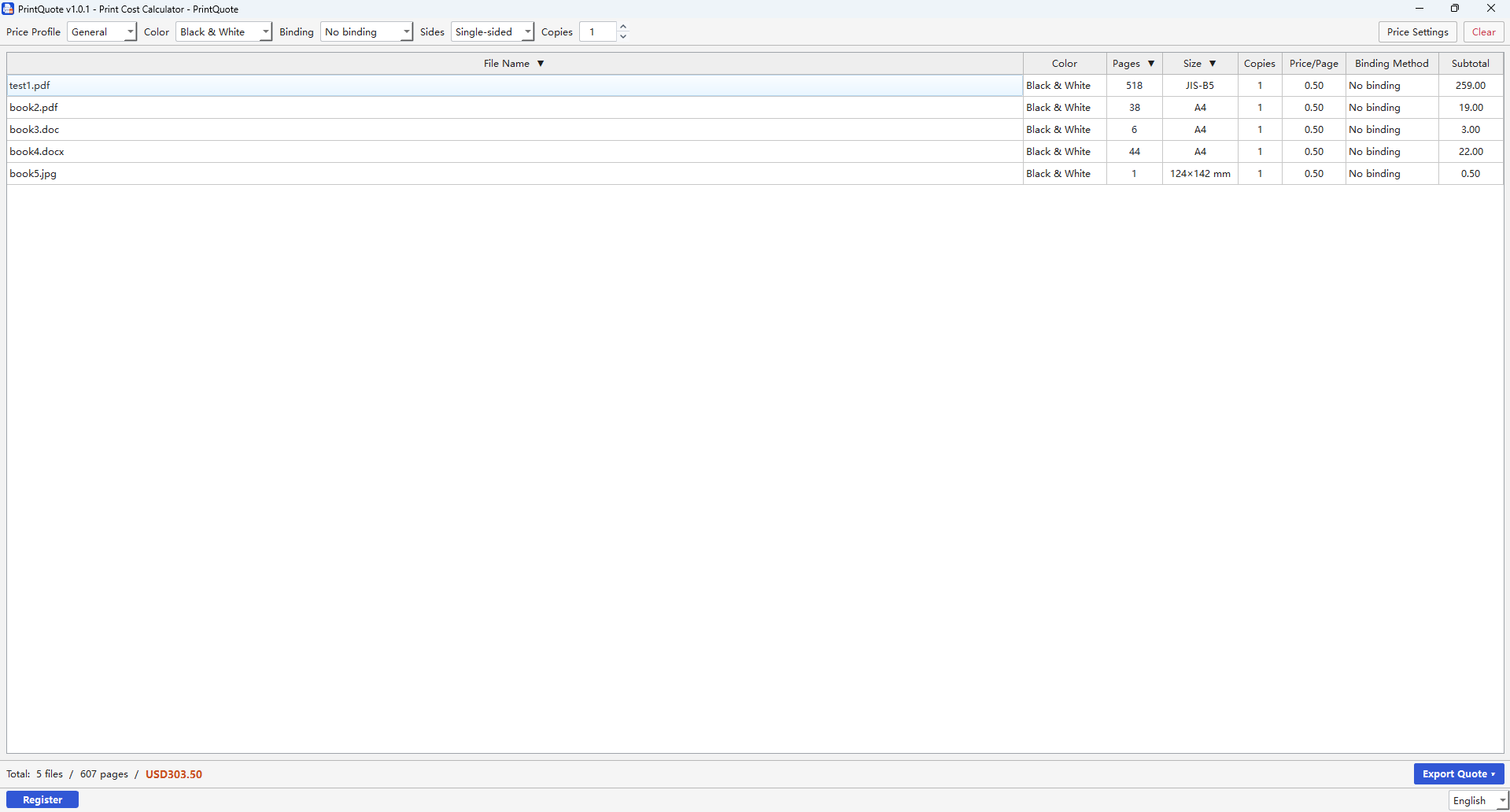
Move from files to quote-ready line items
PrintQuote recognizes supported PDF, Office and image batches, applies reusable cost rules and exports professional PDF or Excel quotations on Windows.
Download PrintQuoteView PrintQuote detailsCommon print estimating problems
Page counts are correct but the size is wrong
Inspect documents with mixed or custom page sizes. Price or split those pages according to the actual production path.
Office files cannot be recognized
PrintQuote requires Microsoft Office or LibreOffice to process Word, PowerPoint and Excel files.
The total changes between operators
Use one shared pricing profile and document when discounts, minimum charges and rounding should apply.
Finishing is missing from the quote
Add binding and other services as visible line items instead of recording them only in notes.
Frequently asked questions
How do I calculate the cost of a print job?
Combine page count and size with print mode, sides, quantity, paper, finishing, minimum charges, discounts and tax.
What should a print quotation include?
Include customer and seller details, the job description, quantity, line-item prices, tax, total and quotation validity.
Can print quotation software read several files?
Yes. Compatible software can inspect supported files as a batch and create quote-ready details without opening every item manually.