Print multiple files at once
Use the right Windows workflow for PDF, Word, Excel and image files, then keep every print job in order.
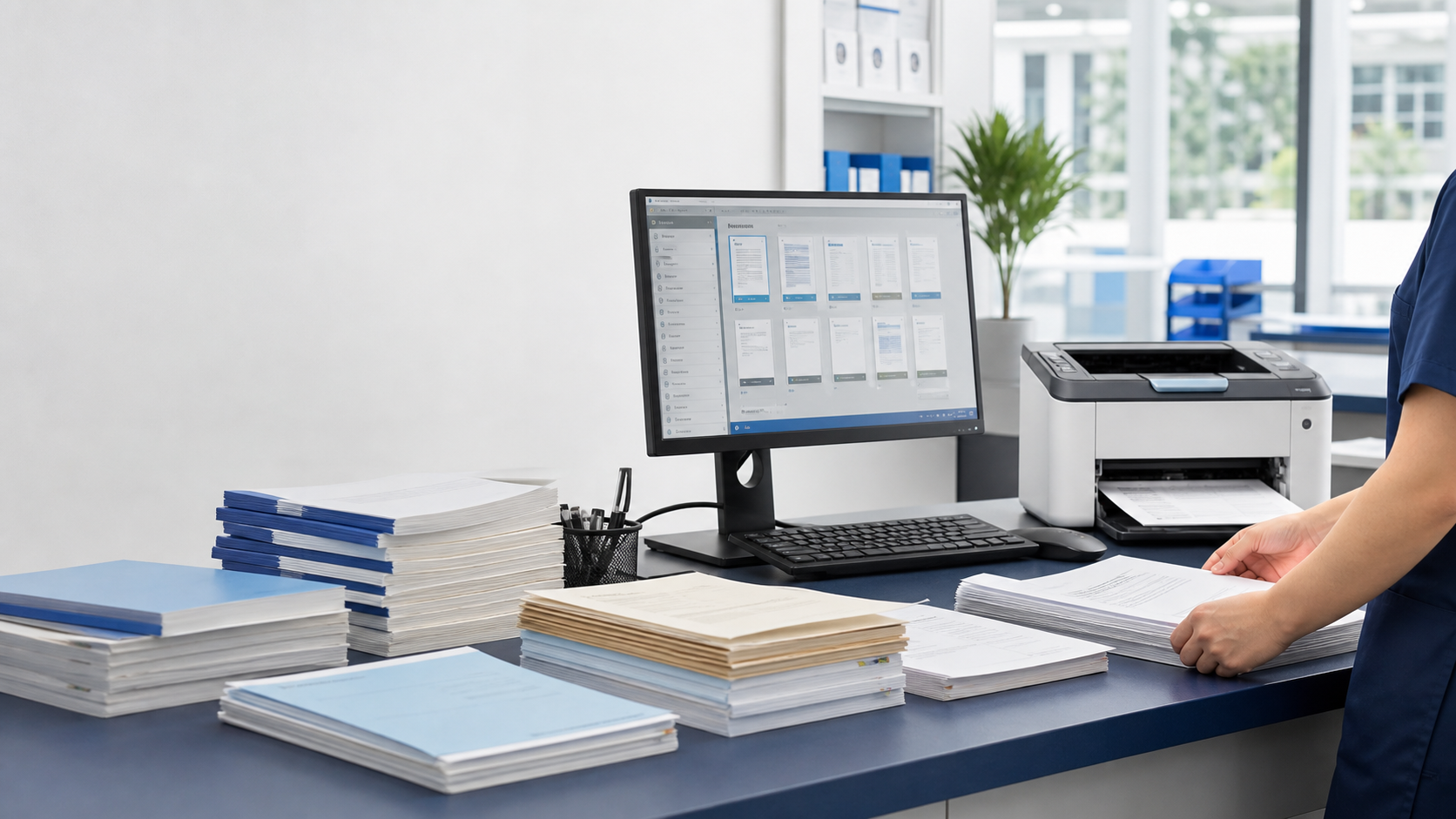
Opening every document and clicking Print works for one or two files. It becomes slow and error-prone when a job contains dozens of invoices, reports, spreadsheets, labels or images.
The real task is to print multiple files at once on Windows while preserving sequence, copy count, paper size, duplex mode and color settings. Three methods cover most situations.
Choose the method that fits the job
Use File Explorer for a small uniform batch
Select compatible files, right-click and choose Print. This is quick when every document uses the same default printer settings and exact order is not critical.
Merge files when one PDF is the final deliverable
Convert the source documents to PDF, arrange them, merge them and inspect the result. This works well for a fixed document pack with shared output settings.
Build a print queue for mixed formats
Use batch printing software when PDF, Office and image files must stay in a controlled order or need different copies, trays, paper and finishing choices.
How to print a small group from File Explorer
- Prepare one folder.Remove temporary versions and rename files if their sequence matters.
- Select the documents.Use Ctrl or Shift to select the files you want to print.
- Open the print command.Right-click the selection. On Windows 11, choose Show more options if Print is hidden.
- Check the printer.The associated applications will normally use the default printer and its current settings.
Use this method when the risk is low. File Explorer offers little control over final queue order and per-file settings.
When a mixed-file print queue is safer
A dedicated queue is a better fit when you need to batch print PDF, Word, Excel and image files together. It lets you inspect the complete job before pages begin leaving the printer.
PrintBench FastBatch accepts PDF, Microsoft Office, OpenDocument, CAJ and common image files. Operators can sort the queue, change copy counts, choose printer-driver settings and keep local print history. Working documents stay on the Windows PC.
| Method | Best for | Watch for |
|---|---|---|
| File Explorer | A few similar files | Limited order and setting control |
| Merge to PDF | One fixed document pack | Extra conversion and merging work |
| Batch print queue | Mixed formats and repeat jobs | Compatible local print engines |
A reliable workflow for larger print runs
Prepare the source files
Place the job in one folder, remove duplicates and confirm protected documents can open.
Name for the right order
Use prefixes such as 001, 002 and 003 when filename sorting controls the sequence.
Test every format
Open one PDF, Office file and image before committing a large mixed-format run.
Review printer rules
Confirm copies, paper, orientation, duplex, color, tray, scaling and finishing.
Print a short sample
Test the most complex spreadsheet, unusual PDF size and any image that needs scaling.
Track completion
Watch the application and Windows print queue so a stopped job can resume cleanly.
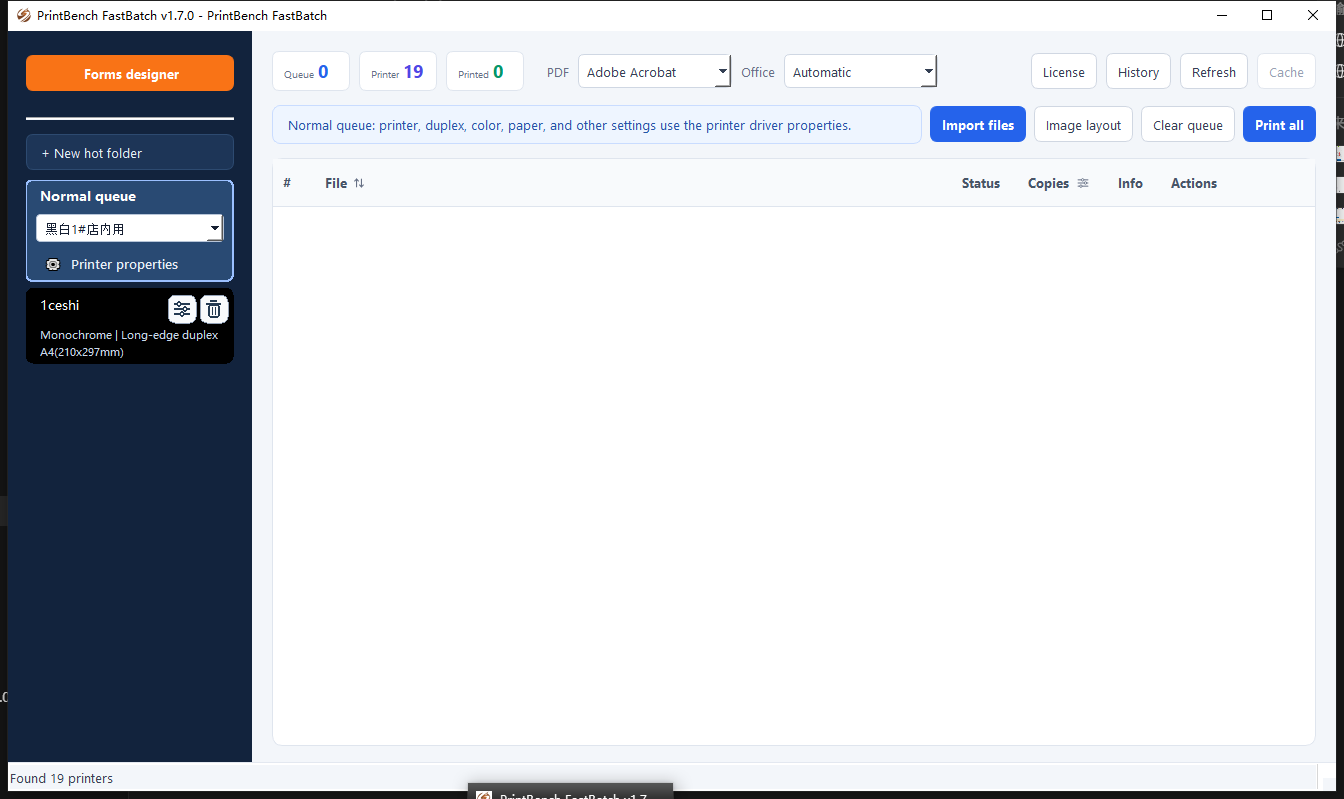
See the complete batch before printing
FastBatch keeps mixed files, printer choices and queue order visible in one local Windows workspace.
Download FastBatchView FastBatch detailsCommon batch printing problems
The files print in the wrong order
File Explorer selection order is not a dependable production sequence. Add zero-padded numbers to filenames or use a queue that displays the order before printing.
Some documents do not print
Confirm that Windows has an application associated with the format and that the file opens normally. Test the failed document by itself.
Duplex, tray or paper choices are ignored
These options come from the selected printer driver. Update the driver and check whether the source application overrides its defaults.
A large batch slows the computer
Break unusually large jobs into logical groups and monitor disk space because Windows may create temporary spool files.
Frequently asked questions
Can Windows print multiple files at once?
Yes. File Explorer can send compatible selected files to their print applications. It works best for small jobs with shared printer defaults.
How can I batch print PDF, Word and Excel files together?
Use a mixed-file batch printing application that creates one visible queue and hands each format to a compatible local print engine.
Can files use different settings in one batch?
This depends on the software. A controlled queue can store copies, paper, color, duplex, tray and other driver settings for individual files or groups.
Does batch printing require cloud upload?
No. A local workflow can prepare and print documents entirely on the Windows PC. PrintBench FastBatch does not upload working documents to PrintBench.