Save printer presets for repeat jobs
Store the printer choices you use every day and send supported documents through the right setup with fewer clicks.
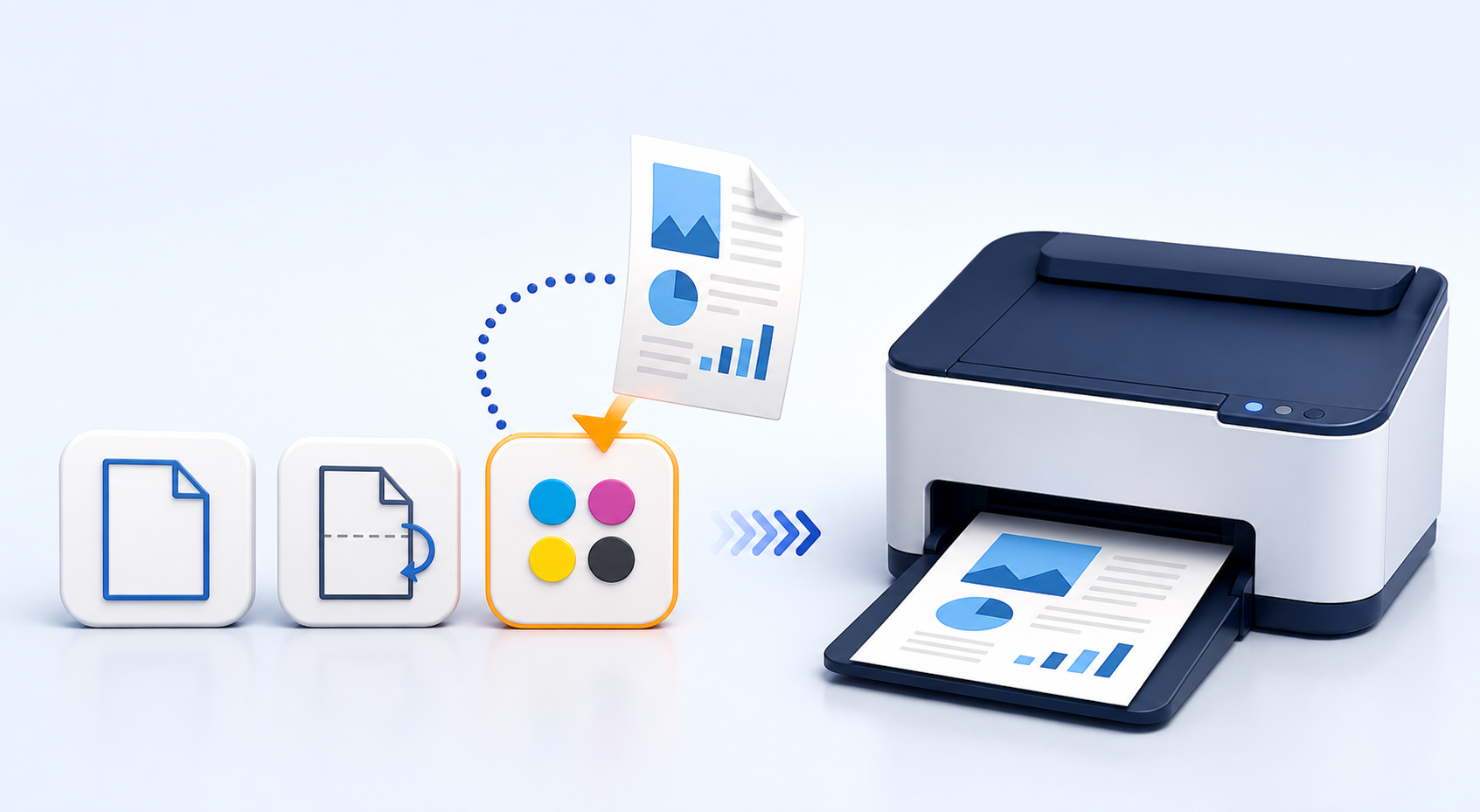
A printer preset is a named setup for one recurring task. It can remember the destination printer, paper size, color choice, duplex mode and copy count.
Windows and printer drivers provide defaults, but one default cannot represent every job. Shipping labels, A4 office documents and color proofs often need different devices and settings.
When printer presets save time
Routine office documents
Keep A4, monochrome and duplex choices ready for forms, reports and customer paperwork.
Shipping and product labels
Route label files to the dedicated printer with the correct paper size instead of checking every dialog.
Color proofs and photos
Separate color output from ordinary office printing so one workflow does not overwrite the other.
Create a clear preset for each job
- Choose the installed printer.Confirm that Windows can print a test page through its current driver.
- Set paper and sides.Select the paper size and single- or double-sided mode.
- Set color and copies.Choose color or monochrome output and the normal copy count.
- Name the actual task.Use labels such as A4 Duplex Office or 4 x 6 Shipping Label.
Name presets by outcome. A task name is easier to recognize than a printer model number when several people share the PC.
Choose the fastest input method
The best launch method depends on where the source file begins. Drag and drop is direct for files in Explorer. A foreground-app command can help when the document is already open. A global hotkey is useful for a setup that must stay immediately available.
| Input method | Best for | Requirement |
|---|---|---|
| Drag and drop | Files visible in Explorer | Supported file type |
| Foreground app | An open document | Recognized application |
| Global shortcut | Frequent repeat action | Unique hotkey |
Test one file through each new preset. Confirm the paper, orientation, color and sides on the physical output before using the preset for a larger run.
Keep repeat print setups close at hand
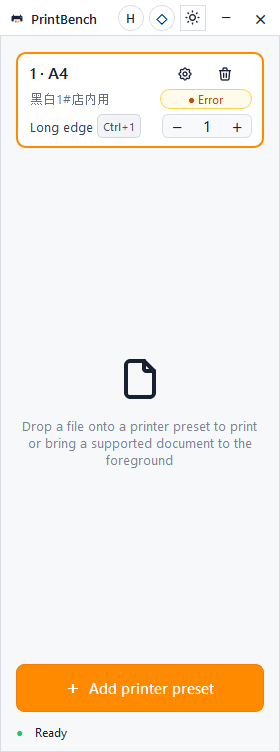
PrintBench Quick turns installed Windows printer settings into compact named presets for drag-and-drop, foreground-app or shortcut printing.
Download QuickView Quick detailsCommon preset printing problems
The preset uses the wrong paper
Open the printer driver, confirm the paper is supported and recreate the preset after changing driver defaults.
A PDF does not print
For PrintBench Quick, PDF quick printing requires Adobe Acrobat or Acrobat Reader on the Windows PC.
A Word document does not print
For PrintBench Quick, Microsoft Office with Word must be installed for Word quick printing.
The foreground application is not recognized
Save the file and drag it directly onto the intended preset.
Frequently asked questions
Can I save printer settings on Windows?
Windows applications can remember some defaults. A dedicated tool is useful when you need several named setups for different jobs.
What should a printer preset include?
Include the printer, paper size, color mode, duplex choice and normal copy count for one recurring task.
Do presets replace printer drivers?
No. The installed Windows printer driver still controls the options supported by the device.