Capture scrolling screenshots on Windows
Collect a long page in one image, mark what matters and remove private details before you share it.
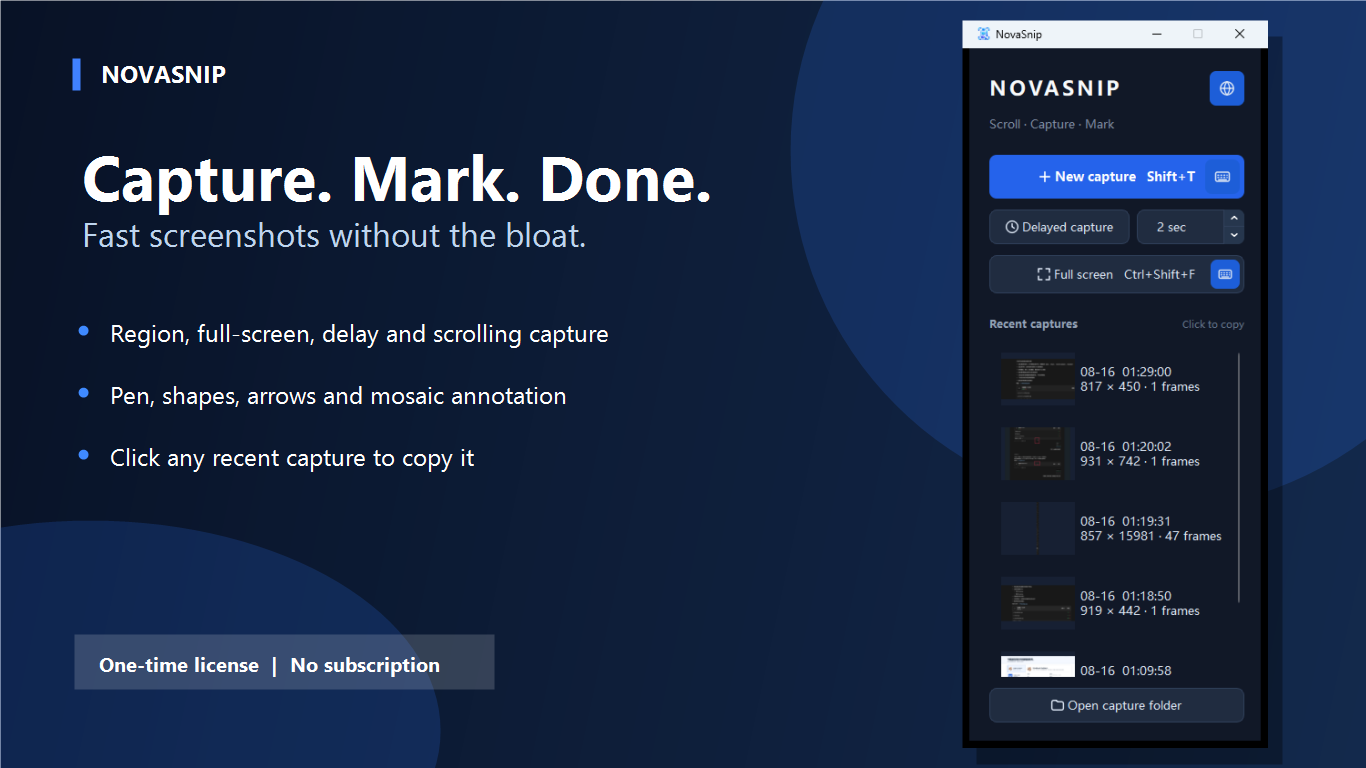
A scrolling screenshot captures content longer than the visible screen and combines it into one continuous image.
It is useful for web pages, conversations, settings panels, reports and support evidence. The key is to stabilize the content before capture so stitching remains consistent.
Prepare the window before capture
- Set the final width.Resize the window before starting because width changes can reflow the content.
- Return to the top.Begin at the first line you want included in the image.
- Stop moving content.Pause video, close popups and wait for images or fonts to load.
- Protect private data.Plan which names, numbers or messages must be hidden later.
Keep the target window still. Manual scrolling, resizing or switching tabs during capture can create gaps or repeated sections.
Choose the right screenshot mode
Region capture
Select one part of the screen when the relevant content already fits inside the viewport.
Full-screen or delayed capture
Use full-screen capture for complete desktop context. A delay helps reveal menus or hover states before the image is taken.
Scrolling capture
Select the scrollable area and allow the tool to move through the content and combine it into one tall image.
Review the result at full size. Check the boundaries, look for repeated headers and confirm that the first and last required sections are present.
Annotate without hiding the evidence
Annotations should direct attention while preserving enough surrounding context to understand the image. Use one clear mark for each point instead of covering the page with shapes.
Point to an action
Use an arrow to identify the exact button, field or status.
Frame a region
Use a rectangle around the area that needs review.
Add short labels
Explain the expected result with concise text near the evidence.
Hide private details
Apply mosaic before the image leaves the Windows PC.
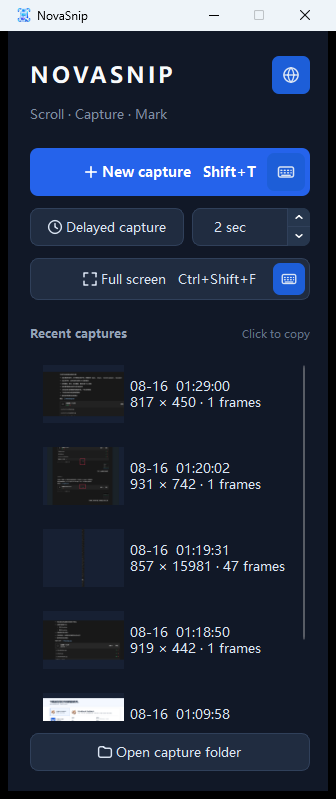
Capture, mark and copy in one local tool
NovaSnip supports region, full-screen, delayed and scrolling capture with arrows, shapes, text, pen and mosaic annotation on Windows.
Get NovaSnipView NovaSnip detailsCommon scrolling capture problems
The screenshot repeats a sticky header
Hide the sticky element if the page allows it, or crop repeated content after confirming that no important information is lost.
Sections are missing or duplicated
Restart from the top, keep the cursor and window still, and wait for dynamic content to finish loading.
The page changes while scrolling
Close animated advertisements, expandable panels or live feeds where possible before capture.
The finished image is difficult to read
Capture at the final window width and share the full-resolution file instead of a compressed messaging preview.
Frequently asked questions
How do I take a scrolling screenshot on Windows?
Open the content at the correct width, start a scrolling capture, select the scrollable area and let the tool collect it into one image.
Why does the screenshot skip content?
Moving elements, manual scrolling or unfinished page loading can interrupt stitching. Stabilize the page and try again.
Can I annotate before sharing?
Yes. Add arrows, shapes or text for clarity and apply mosaic to sensitive information before copying or saving.