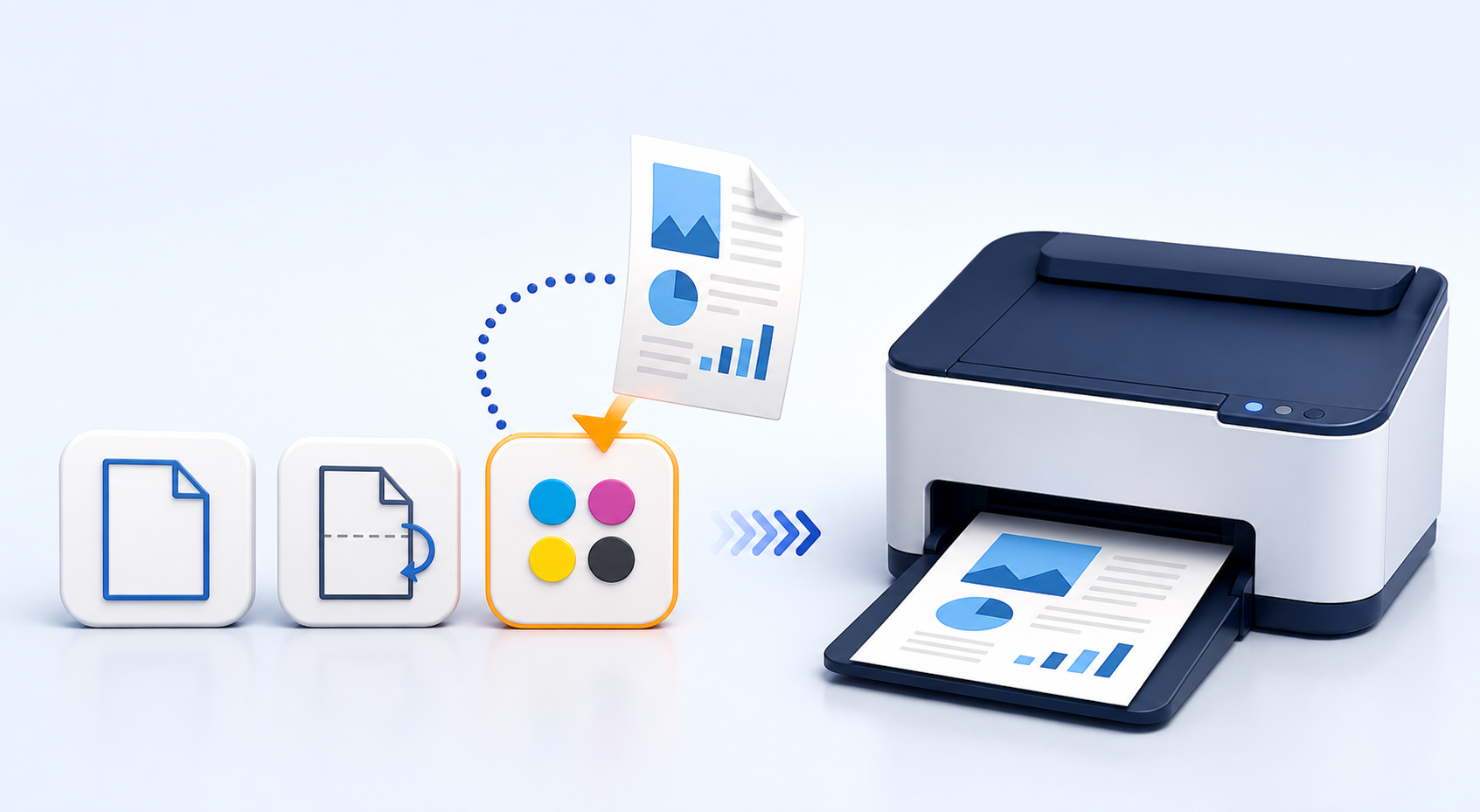
The printer, paper size, single- or double-sided mode, color or monochrome output and copy count.
Preset printing for Windows
Save a print setup once. Reuse it in seconds.
Quick turns a printer, paper size, color mode and duplex choice into a named preset. Drop in a file or use a shortcut to print with that setup.
What Quick actually saves
A preset is a reusable route to a specific Windows printer with the choices your job needs. It removes the repeated search through the full print dialog.
PDF files, Word documents and common image files by drag and drop, supported foreground apps or global hotkeys.
The same familiar job through the selected Windows printer with far fewer clicks.
A faster path for repeat jobs
Each preset represents a real printer configuration, not just a shortcut to the print dialog.
Create a preset
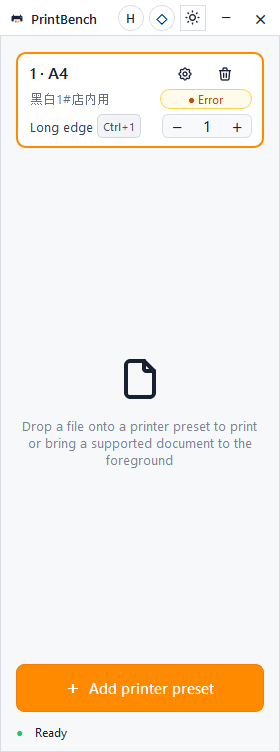
Choose an installed printer and set the paper, duplex, color and copy options for a task you perform often.
Give it a clear job
Keep separate presets for examples such as A4 office documents, 4 x 6 shipping labels or color photo output.
Drop, click or press
Drag a supported file onto the preset, bring a supported document to the foreground, or trigger its global keyboard shortcut.
A small control that stays out of the way
Quick shows every saved setup as a compact preset card. Printer status and paper warnings remain visible before you send the job.
Front desk documents
Send forms and customer paperwork to the usual office printer with the correct duplex and monochrome choices.
Shipping labels
Keep a dedicated label-printer preset so the correct device and paper size are always one drop away.
Photo and proof output
Switch to a color printer preset without changing the configuration used by everyday documents.
Compatibility to know before installing
Quick uses the Windows printers and drivers already installed on the PC.
- PDF quick printing requires Adobe Acrobat or Acrobat Reader.
- Word document quick printing requires Microsoft Office with Word.
- If a foreground app is not recognized, drag the file directly onto a preset.
- Documents and presets stay on the local Windows machine.
Learn how to save printer presets
Reuse printer, paper, color, duplex and copy settings for everyday jobs.
Print the same kind of job every day?
Save the setup as a preset and stop rebuilding it.