Create variable data printing from Excel
Connect spreadsheet records to one design, verify every personalized item and export production-ready print sheets.
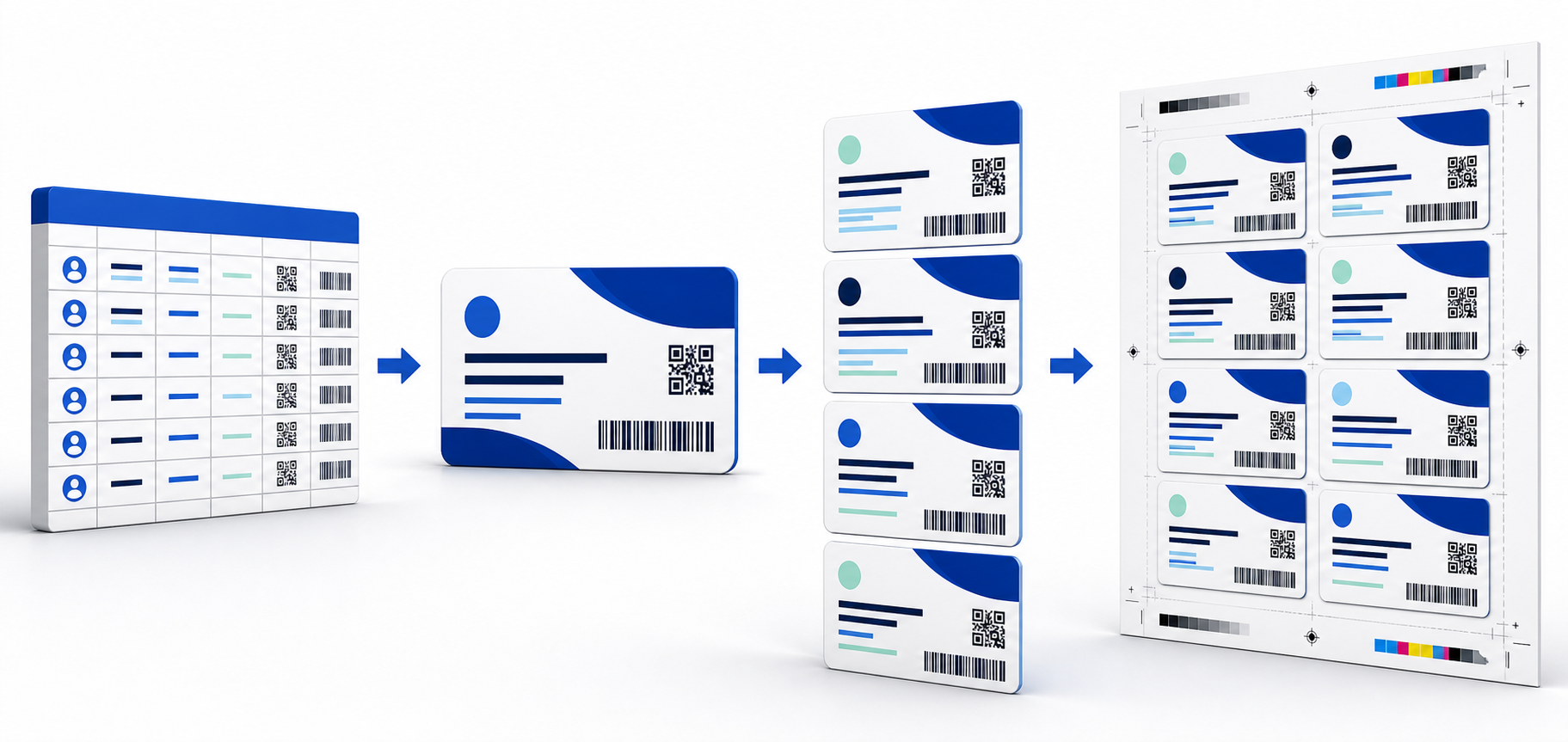
Variable data printing replaces manual copy and paste with a repeatable connection between spreadsheet rows and a designed print layout.
A single Excel or CSV file can drive personalized names, addresses, membership numbers, product images, barcodes and QR codes. Each row becomes one card, label, ticket, coupon or mail piece.
Prepare clean Excel or CSV records
Start with one header row and one record per row below it. Use short, unambiguous column names such as FullName, MemberID, PhotoPath and QRValue. Keep dates and leading zeros as text when their exact appearance matters.
- Remove empty rows.Blank records can create empty output pages.
- Check unique values.Look for duplicate IDs, ticket numbers or coupon codes.
- Verify image paths.Keep image files in a stable local folder and test several paths.
- Save a working copy.Preserve the source data before cleaning or reformatting it.
Design for the longest realistic value. A short sample name may fit while a real customer name overflows the text box.
Build one reusable print template
Set the finished item size first. Add a background PDF or image if the artwork already exists, then place variable text, images, tables, barcodes or QR codes over it. Bind each changing element to the matching spreadsheet column.
Text fields
Control font, size, alignment and available width. Test long values and non-Latin characters used by the actual data.
Variable images
Map a local file path column to an image frame and decide how different aspect ratios should fit.
Barcodes and QR codes
Bind the encoded value, leave a clear quiet area and scan printed samples before the full run.
Preview records before PDF export
Move through the first, middle and last records. Check front and back artwork, missing images, text overflow and code readability. A controlled preview catches data problems before paper and finishing time are committed.
Inspect edge records
Review unusually long names, blank optional fields and uncommon characters.
Choose sheet layout
Set paper size, margins, bleed, spacing, borders and crop marks.
Select sequence
Use standard or Cut-Stack order according to the finishing workflow.
Export and inspect
Open the final PDF and verify page size, record count and sharpness.
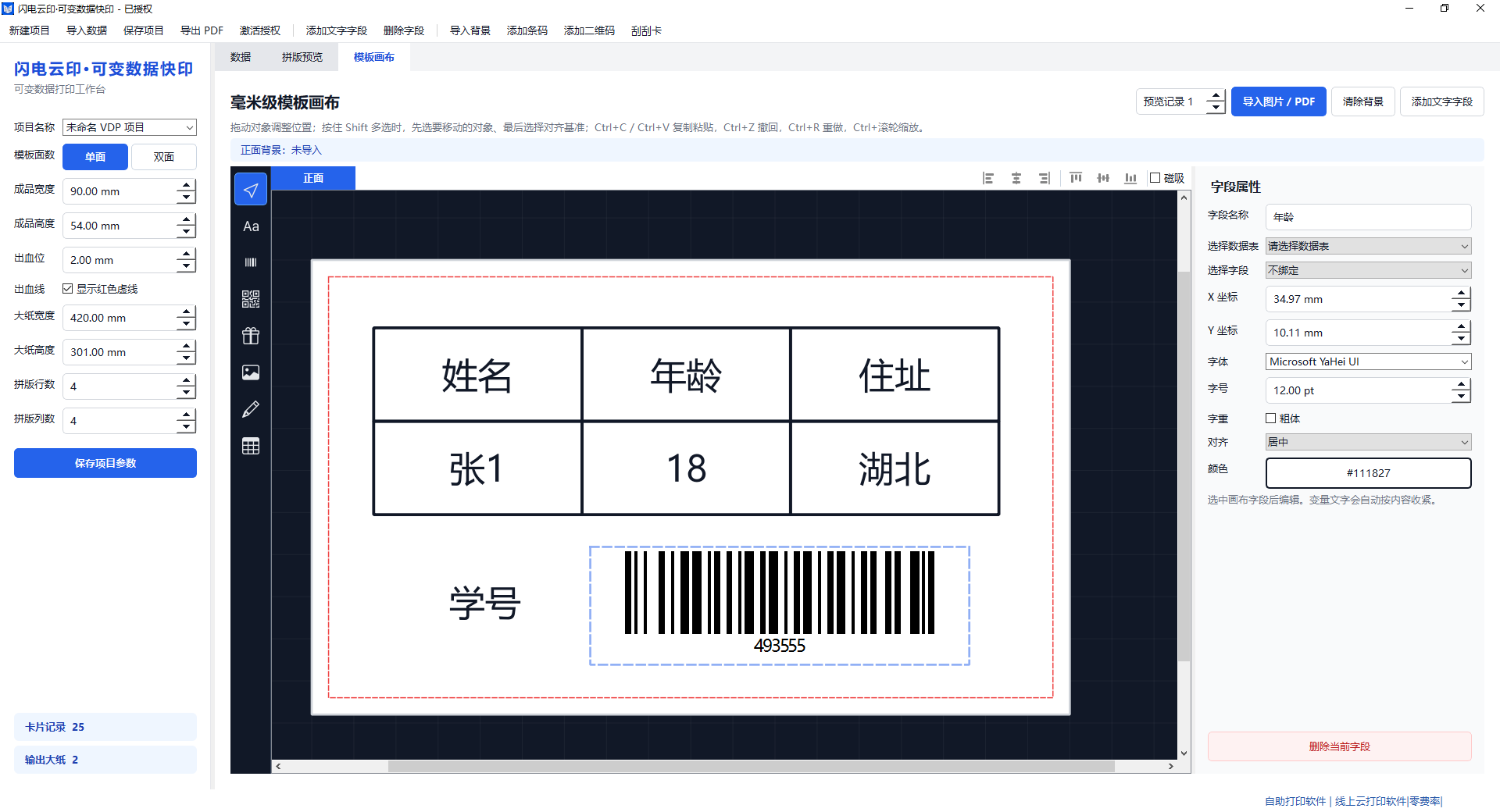
Keep data, design and imposition together
PrintBench VDP imports Excel or CSV records, binds them to a visual template and exports personalized imposed PDF sheets on Windows.
Download VDPView VDP detailsCommon variable data problems
Leading zeros disappear
Format identifiers such as 00127 as text in the spreadsheet before importing the data.
Images are missing
Confirm each path points to an existing local file and that the Windows account can read the folder.
Text runs outside the design
Increase the text frame, reduce the font size or define a rule for unusually long values.
Front and back records do not match
Preview the record sequence and duplex orientation before choosing the final imposition order.
Frequently asked questions
What is variable data printing?
It combines one reusable design with changing data such as names, IDs, images, QR codes or barcodes.
Can Excel be used for variable data printing?
Yes. Each row represents a personalized item and each column supplies a changing field.
Can I create front-and-back cards?
Yes. A VDP template can include coordinated front and back layouts when the software supports duplex production.